Do this once, in one sitting, in one browser. Stay on that same browser until the last step. The pictures use Geneva Grotto as the example. You use your own name and your own Gmail.
Open https://lnbt.org and click Book.
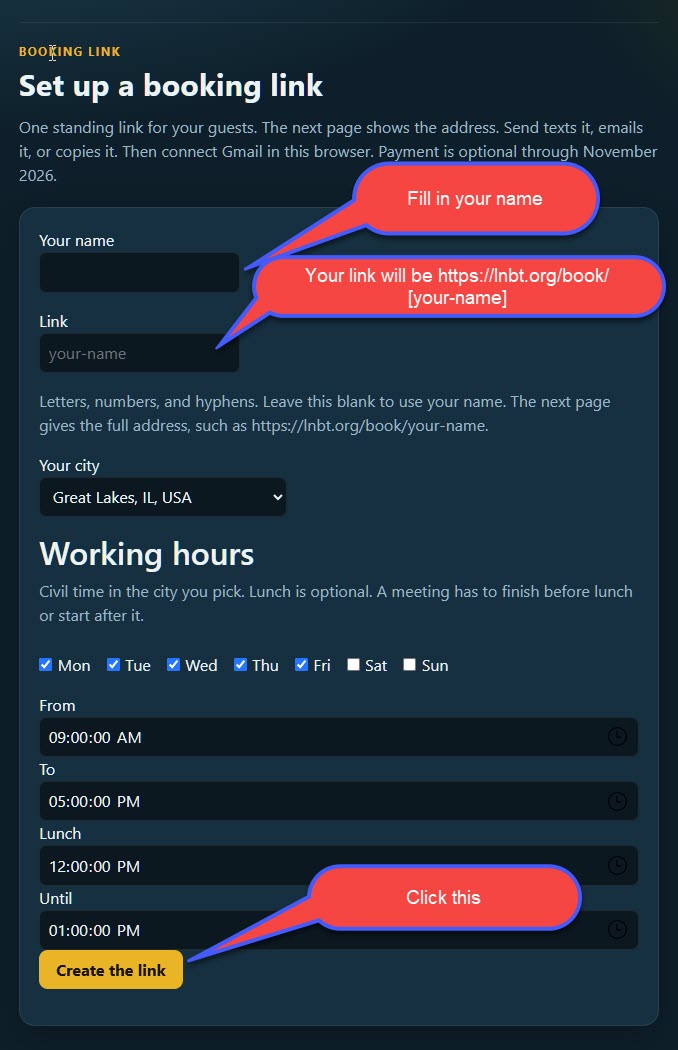
Type your name.
The Link box can stay blank. The address then uses your name, with the spaces taken out, in lowercase. Geneva Grotto became genevagrotto. You can type a shorter word if you want. Use letters, numbers, and hyphens.
Pick your city. Leave the days and hours as they are unless yours are different. Lunch is 12:00 to 1:00. A meeting has to finish before lunch or start after it.
Click the gold button, Create the link.
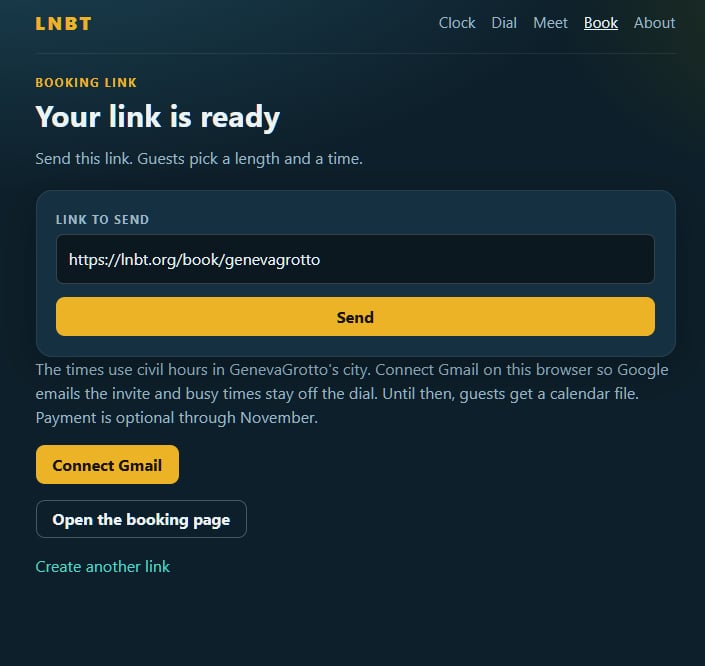
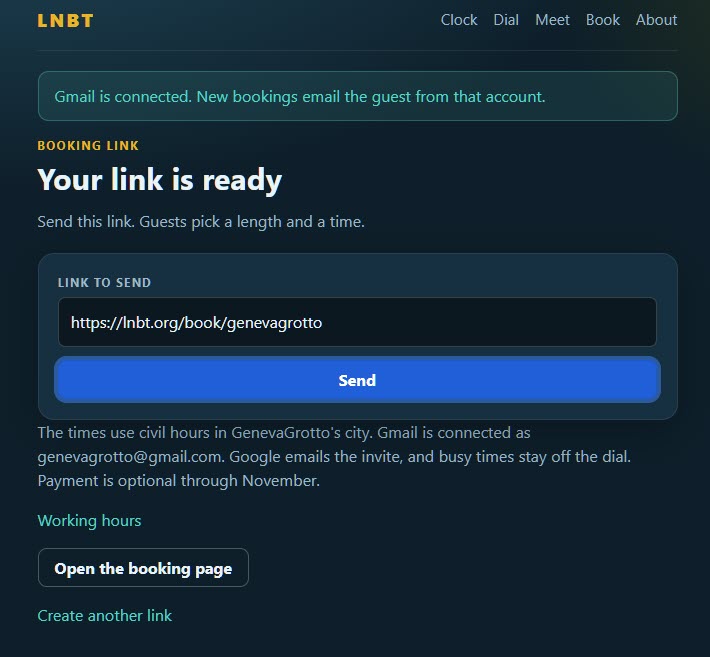
The full address is on the page. In the picture it is https://lnbt.org/book/genevagrotto. Yours will use your word.
You can send it now. Guests would get a calendar file. Connect Gmail first if you want Google to email the invite and to keep busy times off the page.
Click Connect Gmail.
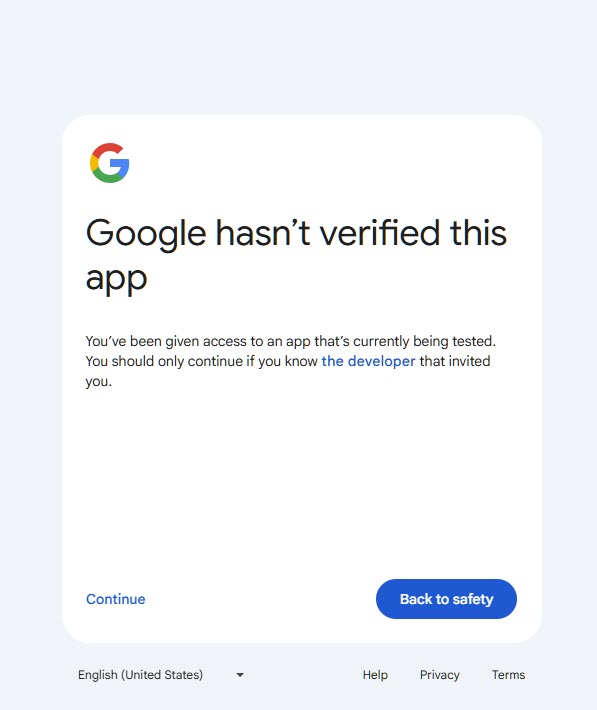
That screen is expected. The booking page is still in testing, and you know who asked you to use it.
Click Continue. That word is on the left. Do not click the blue Back to safety button. That one quits.
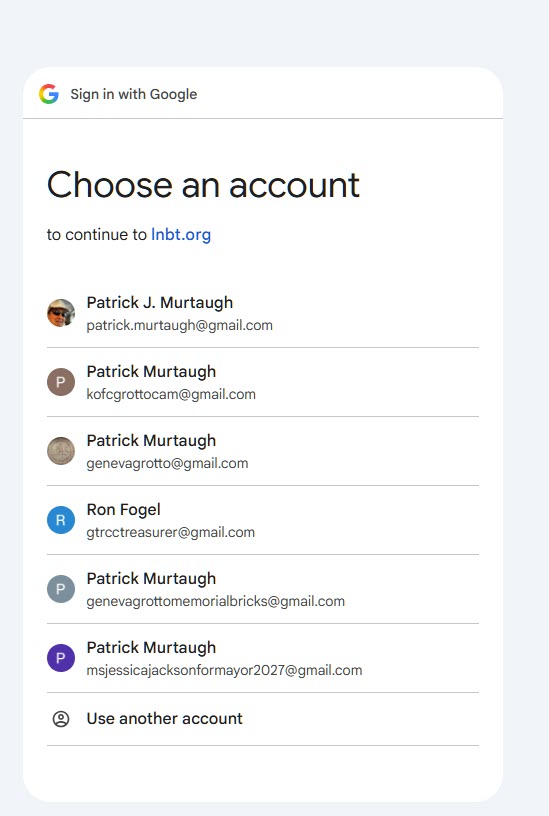
Click the Gmail whose calendar should hold the meetings. In the picture that is [email protected].
The list can show other names. Do not pick one of those unless that mailbox is the one you mean. If yours is not listed, click Use another account and sign in to it.
Read the email under the name. It should be the mailbox you just chose.
Click Continue.
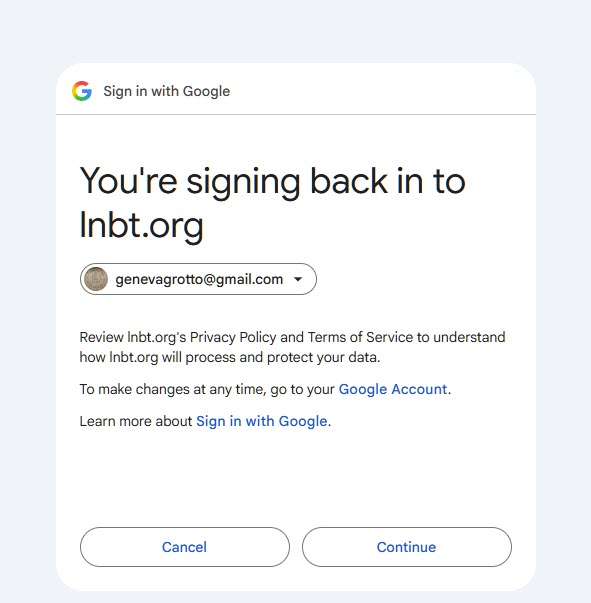
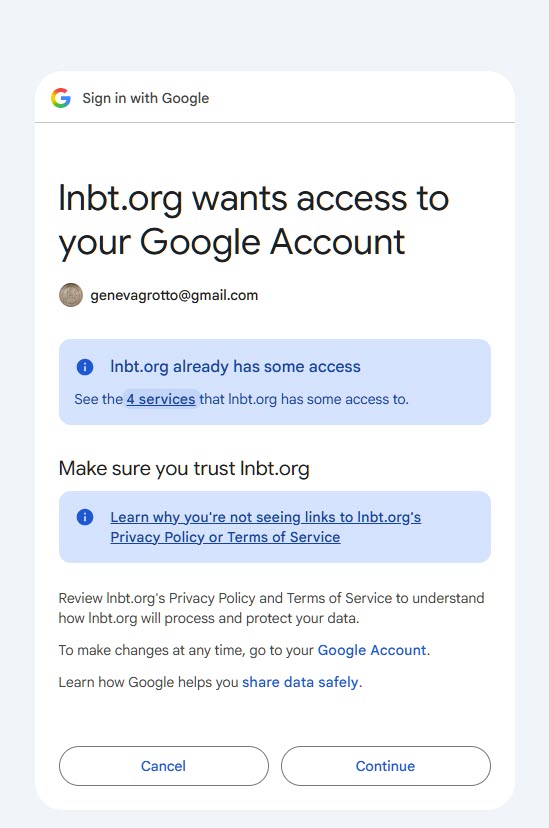
Click Continue again.
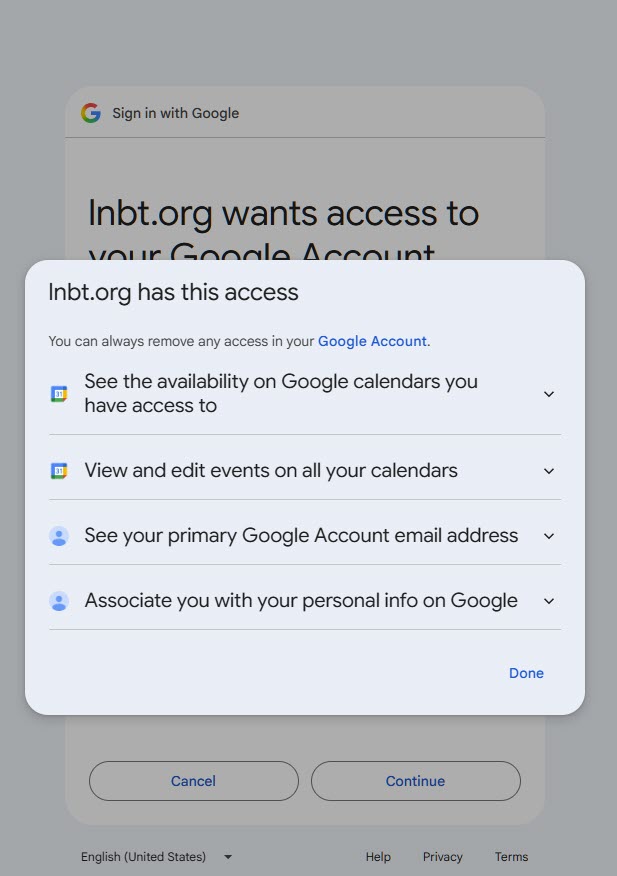
You can open See the 4 services first if you want to read what is being allowed. Then click Done, and then Continue. Do not click Cancel.
Google’s own words sound broad. Here is what they are for:
See when you are busy. Those times are not offered to a guest.
Add the meeting. A new booking is written on that calendar. Old events are not rearranged.
See your Gmail address. The invite is sent from that account, and the page can show which mailbox is connected.
Click Done to close this list, then Continue on the page behind it.
The green line says Gmail is connected. The address is still on the page. Busy times on that calendar stay off the booking page, and Google emails the guest.
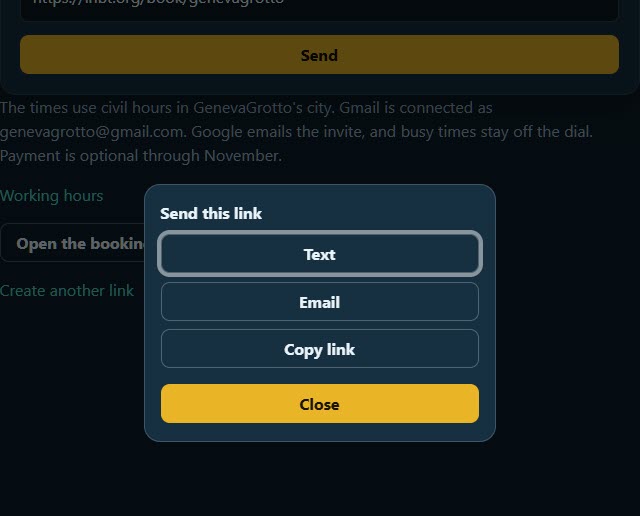
Click Send when you are ready to give someone the address.
Text opens your messages with the address already written.
Email opens mail with the address already written.
Copy link copies the address so you can paste it somewhere else. The page says Copied.
Click Close when you are finished.
Open https://lnbt.org in the same browser and click Book. Your address is there. Click Send again any time.
Working hours is on that page if the days or the lunch break need a change.
A different browser, or a different phone, shows the first setup page again. That does not mean the link is gone. Go back to the browser you used here.
They open the address you sent. They pick a length, a day, and a time, then type their name and email and click Confirm. Google emails both of you.